
Custom folders let authorized document managers organize files into an organization-specific hierarchy. A folder can be available to the full board or restricted to one committee.
Before you begin: You need folder-management permission for the full board or the selected committee.
Create a folder #
- Open Documents → All Documents.
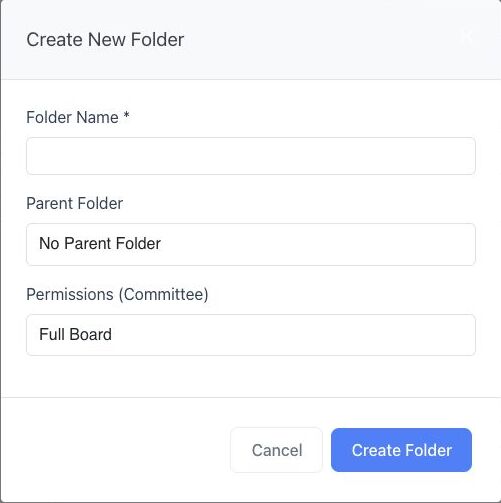
- Select Create New Folder.
- Enter a clear, unique Folder Name.
- Choose a Parent Folder. Select No Parent Folder for a top-level custom folder, or choose a standard or custom folder to create a nested folder.
- Under Permissions (Committee), choose Full Board or the committee that should have access.
- Select Create Folder.
Edit a custom folder #
- Find the folder under Custom Folders.
- Select the three-dot menu beside the folder.
- Select Edit.
- Update the name, parent folder, or committee permission.
- Review how the new location and permission affect access, then save the change.
Manage folder order and archived folders #
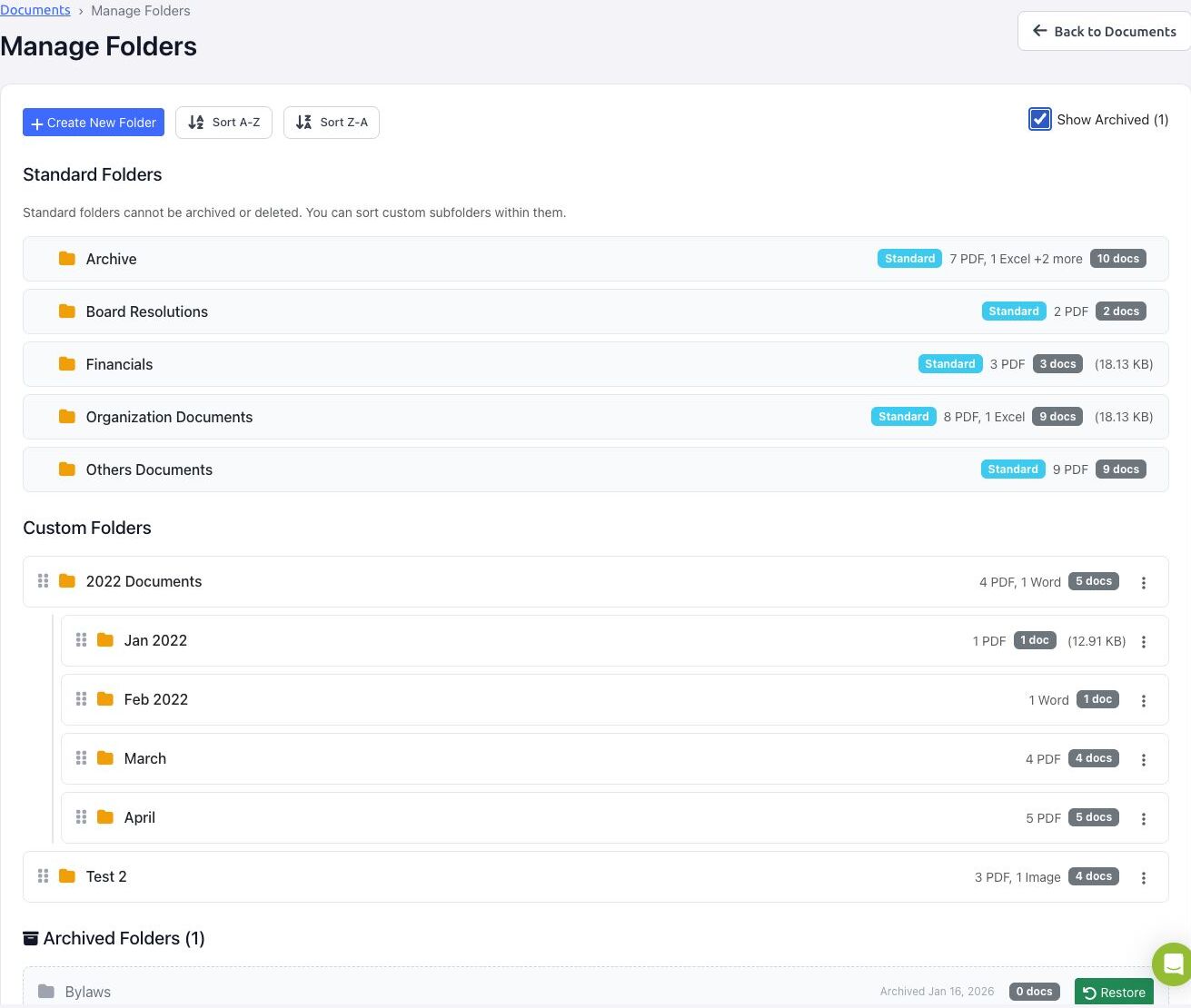
Super administrators and other users with the required management permission can select Manage Folders from Documents Manager.
- Select Sort A-Z or Sort Z-A for an alphabetical starting order.
- Use the drag handles to arrange custom folders and nested folders. Save the order when BoardSite displays the save control.
- Use a custom folder’s three-dot menu to Edit, Archive, or Delete.
- Select Show Archived to display archived folders, their archive dates, document counts, and Restore actions.
- Standard folders cannot be archived or deleted.
Delete a custom folder #
- Select the folder’s three-dot menu, then select Delete.
- Read the confirmation carefully. If the folder contains documents, BoardSite warns that they will also be deleted.
- Confirm only when you are certain the folder and its contents are no longer needed.
Important: Folder deletion is described as irreversible in the confirmation workflow. Prefer reorganizing or archiving content when preservation is required.
Folder-planning tips #
- Use short, predictable names that remain useful over time.
- Avoid creating duplicate folders for the same year, committee, or document type.
- Keep committee-restricted folders separate from full-board folders.
- Set the visibility of the documents inside a folder consistently; do not assume that moving a document automatically changes its own committee setting.
Troubleshooting #
- If Create New Folder or the three-dot menu is missing, ask an administrator to review folder-management permission.
- If Manage Folders opens the generic error page, your role may be able to see the link without having access to the administrator page. Ask a super administrator to review the folder or your permissions.
- If a parent folder is unavailable, confirm that it belongs to the current organization and that you can access it.
- A folder cannot be moved into itself or one of its own subfolders.


