
Use Repeat Previous Meeting when a new meeting should start with the details of an earlier one. BoardSite copies the source meeting into a new form so that you can review and change it before creating anything.
Before you begin: You need permission to create meetings. Repeating a meeting does not update the original meeting.
Select the meeting to repeat #
- Sign in to BoardSite and select the correct organization.
- Open Meetings, then select Upcoming.
- Select Add Event.
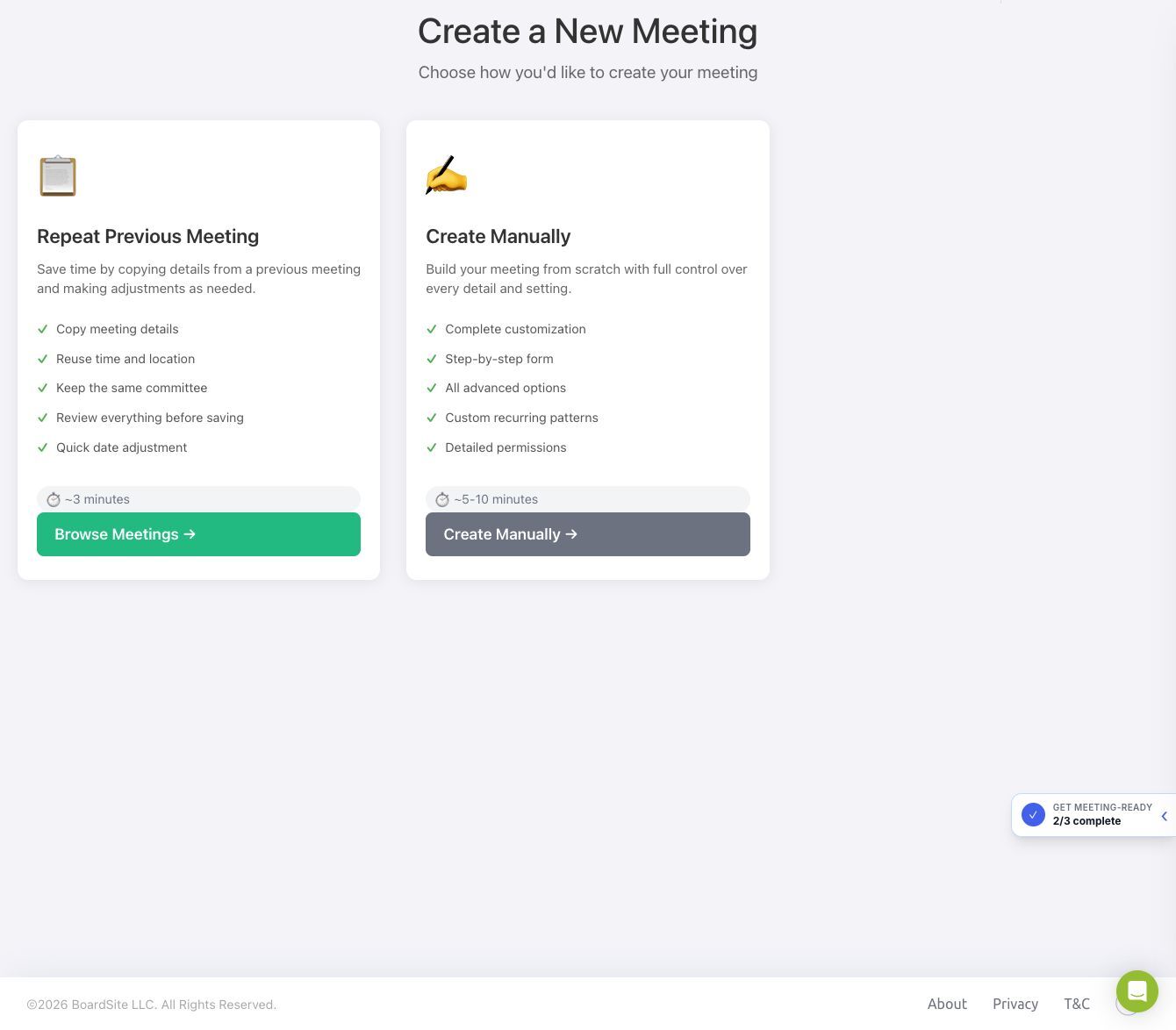
- Select Repeat Previous Meeting.
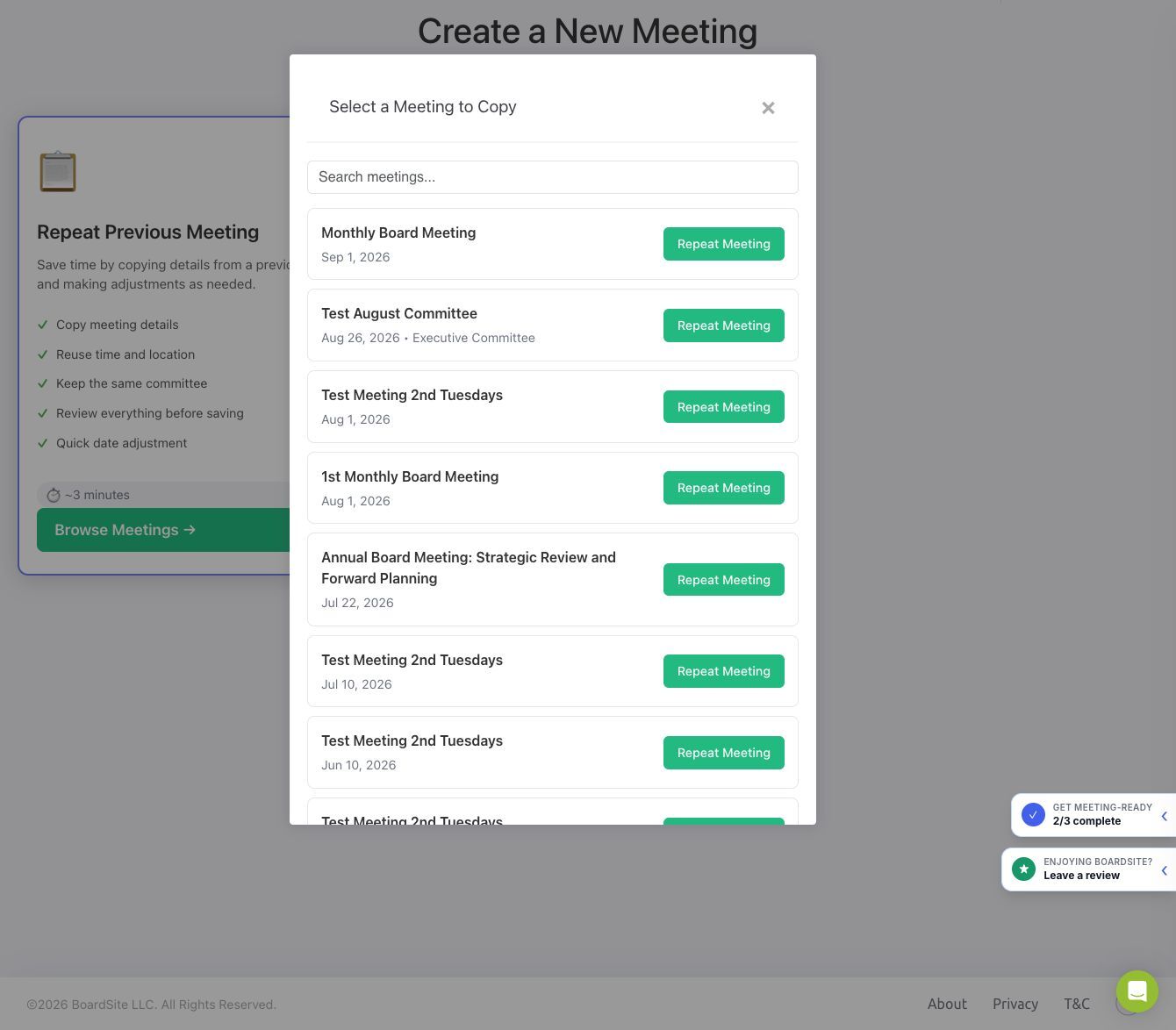
- Search for the source meeting, then select Repeat Meeting.
Review the copied meeting #
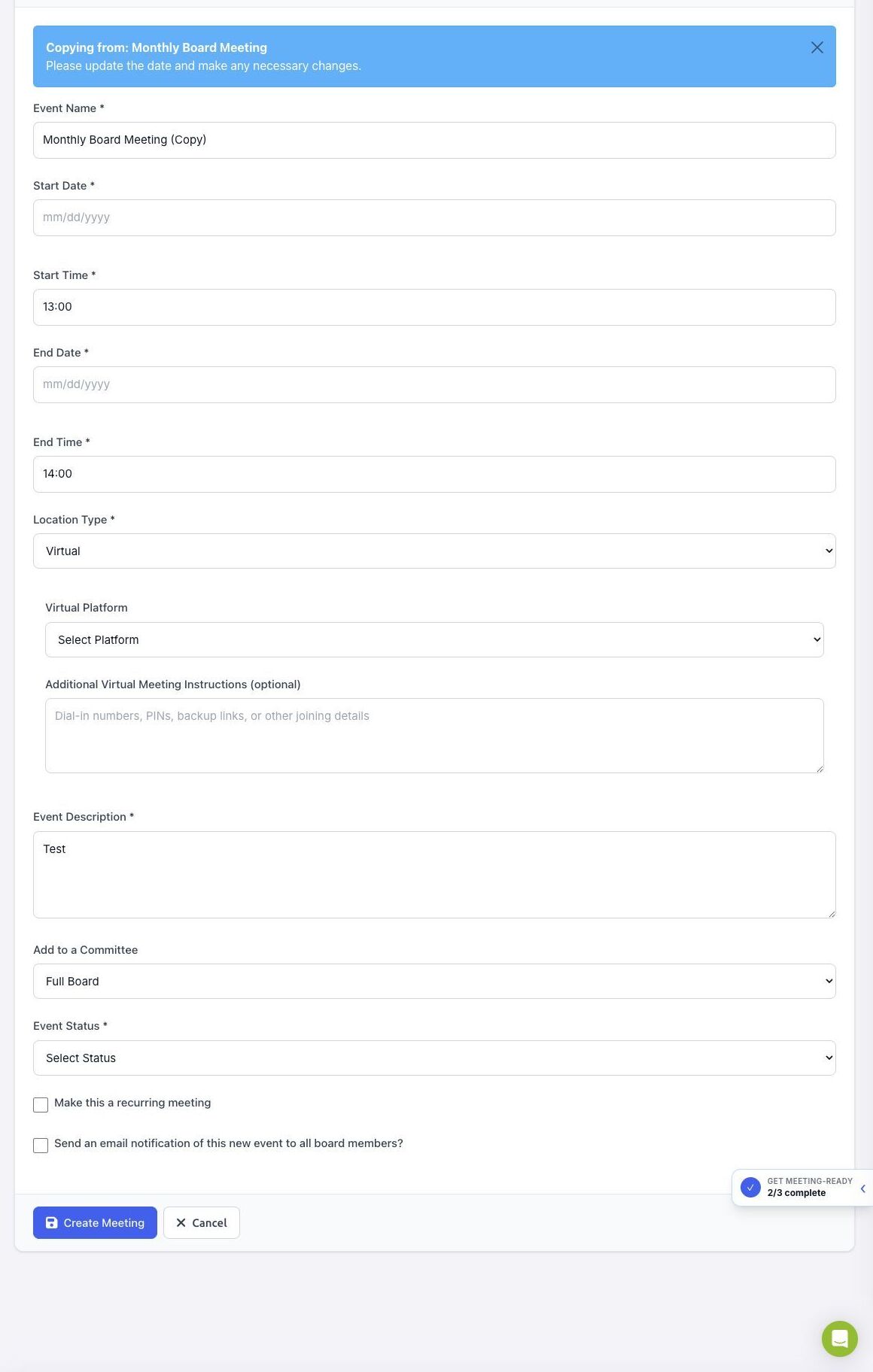
- BoardSite opens a copied meeting form and adds (Copy) to the event name.
- Enter the new start and end dates.
- Review the event name, times, location, description, committee, virtual-meeting details, status, and notification choice.
- Remove or replace any copied information that should not carry forward.
- Select Create Meeting only after every field is correct.
Important: Treat the copied form as a draft. Do not assume that old links, locations, descriptions, committee choices, or notification settings are appropriate for the new meeting.
Troubleshooting #
- If Add Event is missing, ask an organization administrator to review your meeting permissions.
- If the source meeting is missing, confirm that you can access its committee and organization.
- If you need a repeating series instead of a single copied meeting, use a recurring meeting template.


