
Surveys let users whose role includes survey-creation permission collect one multiple-choice response from the full board or a selected committee.
Create a survey #
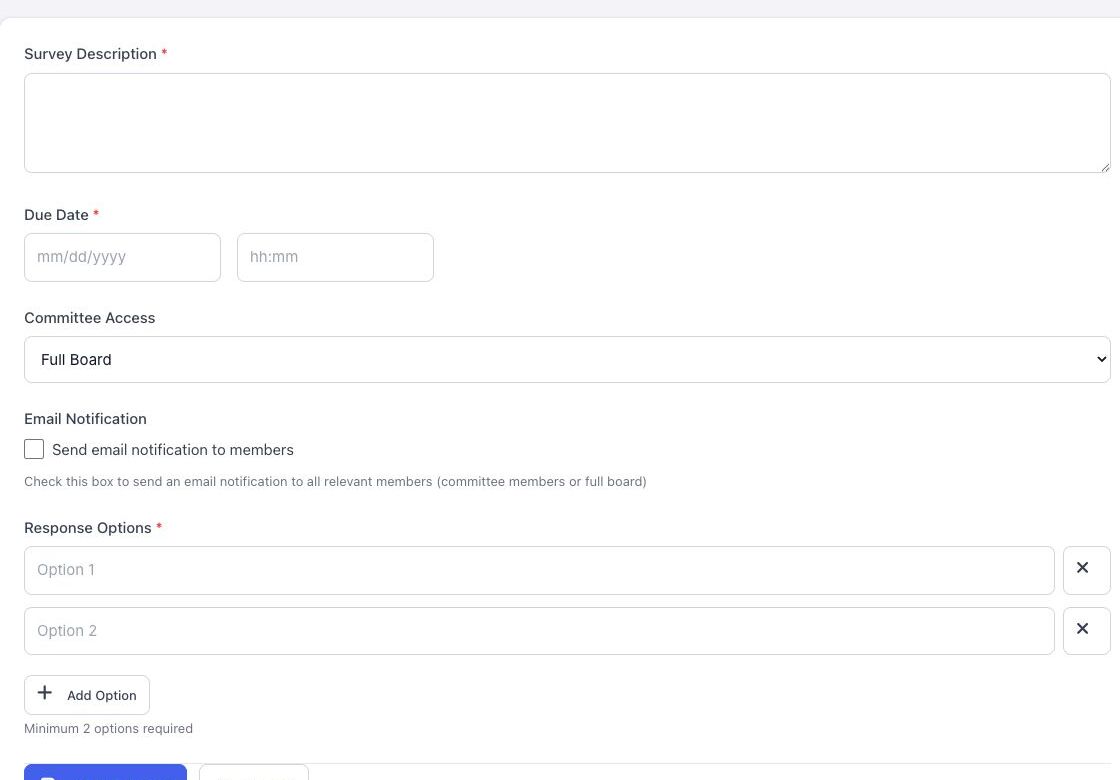
- Open Surveys and select Create Survey.
- Enter the required Survey Description.
- Set the due date and time.
- Under Committee Access, choose Full Board or a committee.
- To notify eligible members by email, select Send email notification to members.
- Enter at least two response options. Select Add Option for more choices.
- Select Create Survey.
Manage surveys #
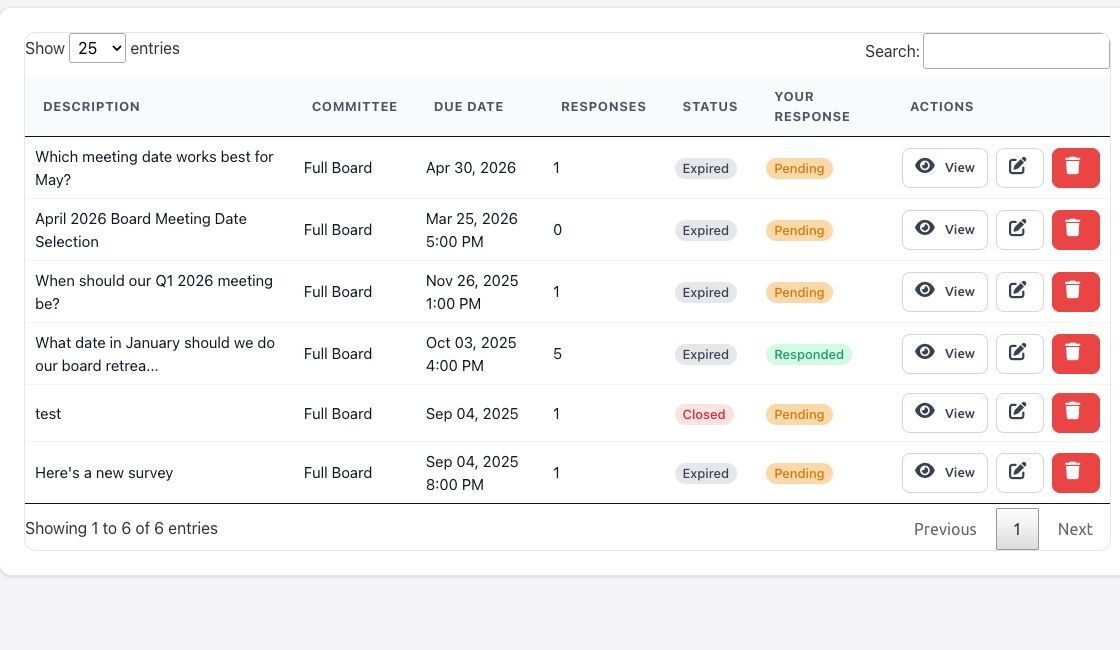
The survey list shows its audience, due date, response count, status, and your own response status. Use search to find a survey, then select View for results or Edit to update it. Use Delete only when the survey should be removed.
Review results #
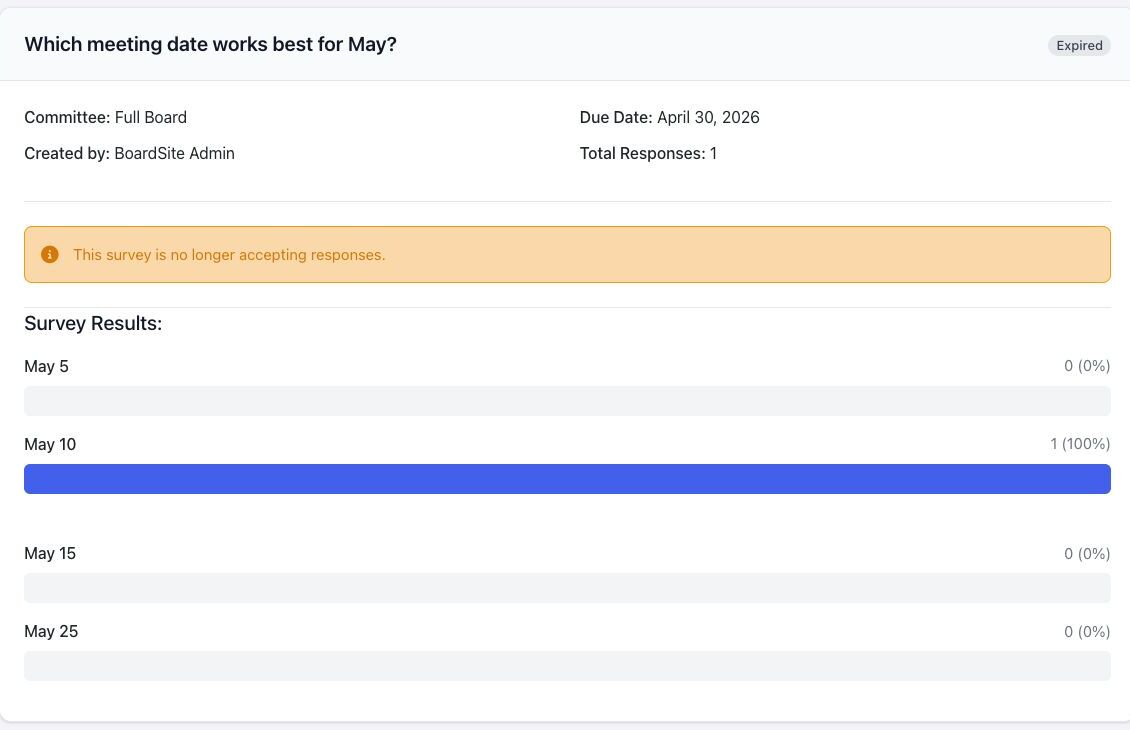
The details page shows the count and percentage for every option. After the due date or after a survey is closed, BoardSite displays that it is no longer accepting responses.
Before emailing: confirm the audience and wording. Creating a survey with email notification enabled can send an external message to eligible members. Survey creation is capability-based; it may be available to a Director when that role’s permission template allows it.


