
A board packet combines selected meeting sections and PDF attachments into one downloadable file. Authorized users can create or regenerate a packet from the meeting workspace; other permitted participants can download the current packet.
Before you begin: Finish reviewing the agenda, minutes, and attachments. Only PDF attachments can be merged into the packet.
Create a board packet #
- Open the meeting workspace.
- Select Board Packet.
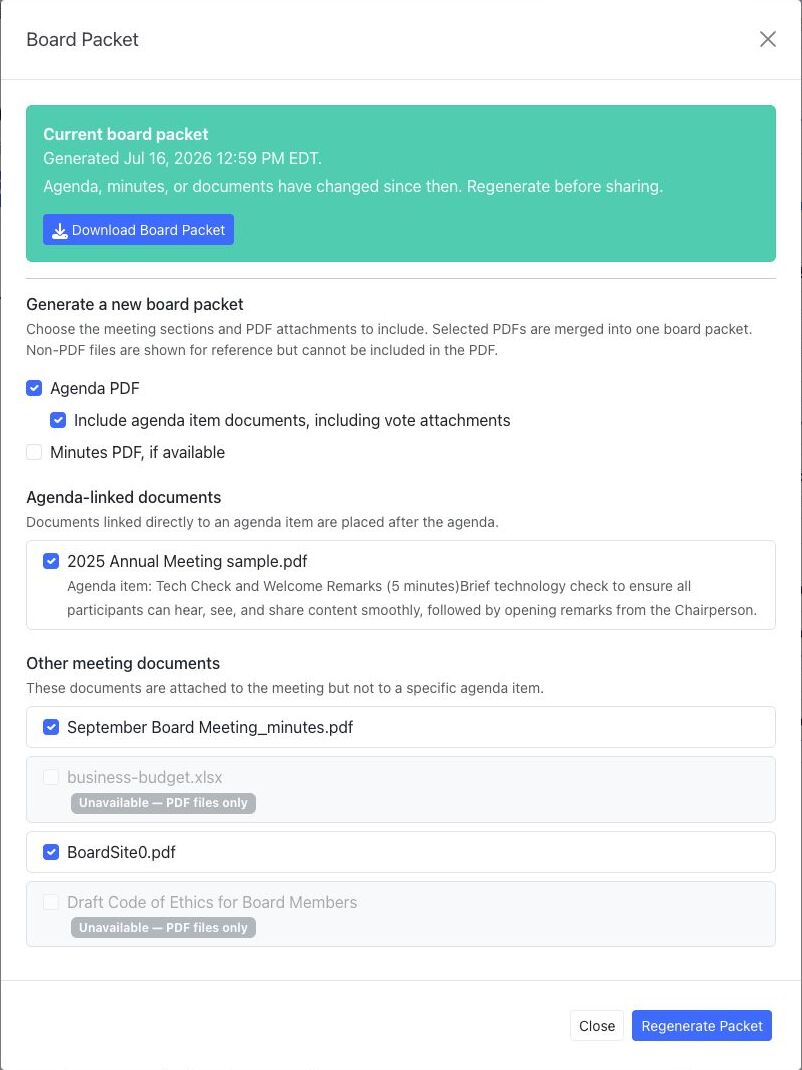
- Choose whether to include the Agenda PDF.
- If the agenda is included, choose whether to include agenda-item documents, including vote attachments.
- Choose Minutes PDF, if available when the meeting minutes should be included.
- Review the agenda-linked and other meeting documents. Select the enabled PDF files to merge. Non-PDF files are displayed for reference but cannot be selected for the combined PDF.
- Select Generate Packet.
- Wait for the success message, then download the new packet from the current-packet area.
Download or regenerate a packet #
- Open Board Packet and use the download action in the current-packet area.
- If BoardSite warns that the agenda, minutes, or documents changed after the packet was generated, review the changes and select Regenerate Packet.
- Regeneration replaces the current packet with a newly assembled version based on the selections in the dialog.
Version-control tip: Regenerate the packet after the final agenda or attachment change and before telling participants that the packet is ready.
Troubleshooting #
- If Generate Packet is missing, you may be able to download the current packet but not manage meeting documents, agendas, or minutes.
- If a file is disabled, confirm that it is a PDF.
- If generation is temporarily unavailable, try again later or contact your BoardSite administrator.


