
Document indexing lets BoardSite search inside supported PDF, Word, and Excel files instead of searching only document names. The indexing controls are available to authorized administrators from Advanced Search.
Check indexing status #
- Open Advanced Search.
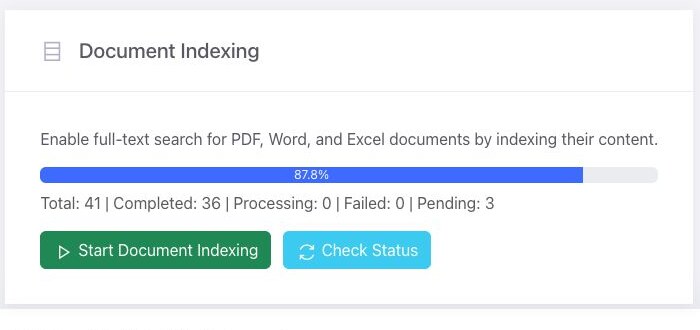
- Scroll to Document Indexing.
- Review the progress bar and the totals for completed, processing, failed, and pending documents.
- Select Check Status to refresh the displayed progress.
Start document indexing #
- Confirm that you are working in the correct organization.
- Select Start Document Indexing.
- Wait for BoardSite to queue the work.
- Use Check Status later to monitor progress.
Do not repeatedly start indexing: Indexing is background work and may take time. Use Check Status before starting another indexing request.
Understand the status counts #
- Completed means BoardSite has processed the file for full-text search.
- Processing means work is currently underway.
- Pending means the file is waiting to be processed.
- Failed means BoardSite could not complete indexing for that file.
Troubleshooting #
- If the indexing section is not visible, ask a super administrator to confirm your permissions and plan access.
- If counts do not change, wait before checking again; background processing is not immediate.
- If failures remain or pending files do not progress, contact BoardSite Support with the organization name, approximate time, and displayed counts. Do not send confidential file contents.
- Image files and other unsupported formats may not produce full-text matches.


