Your BoardSite dashboard brings priority actions, activity, meetings, tasks, and shortcuts into one place. You can choose which widgets appear and restore the default layout at any time.
Open dashboard customization #
- Select Dashboard in the navigation.
- Select Customize Dashboard.
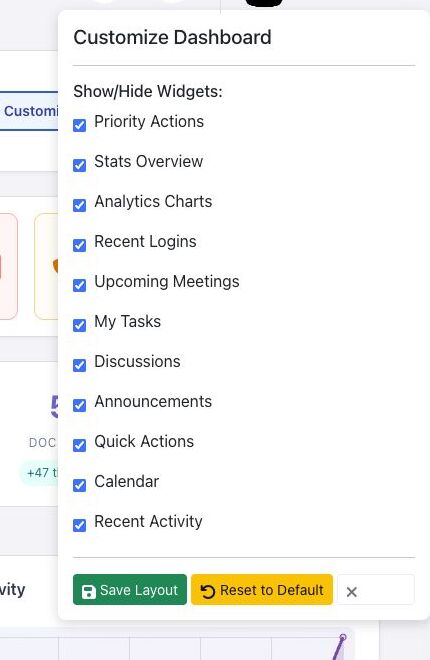
- Use the checkboxes under Show/Hide Widgets to display or hide each section.
Available widgets #
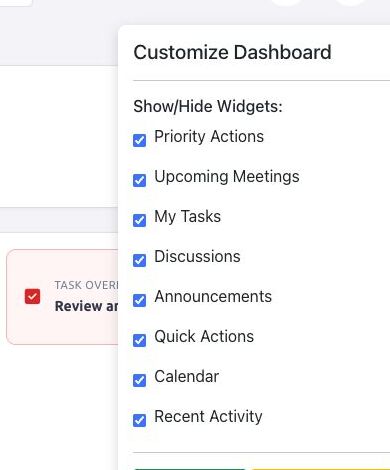
Depending on your role and organization features, the panel can include Priority Actions, Stats Overview, Analytics Charts, Recent Logins, Upcoming Meetings, My Tasks, Discussions, Announcements, Quick Actions, Calendar, and Recent Activity. In the validated Director view, analytics, organization statistics, and recent-login widgets were not offered.
Use Priority Actions #
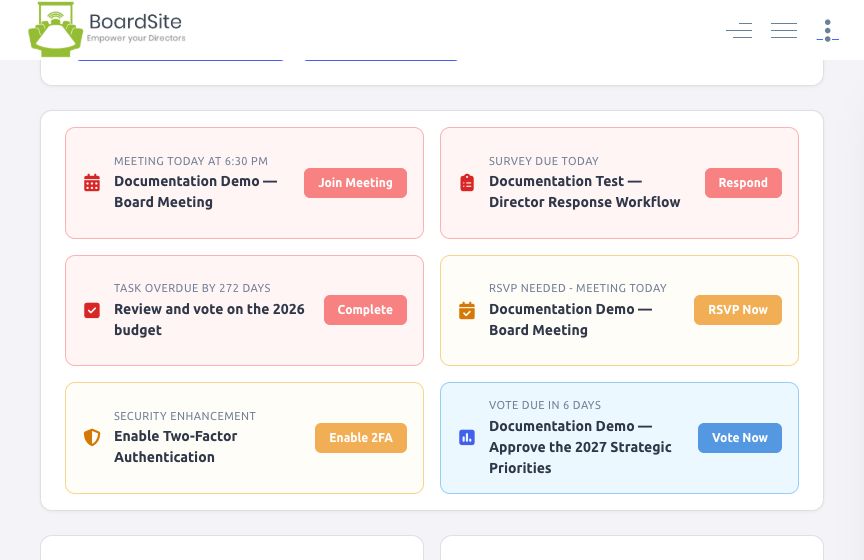
Priority Actions brings time-sensitive work to the top of the dashboard. Depending on your assignments and permissions, cards can include:
- Meeting Today with Join Meeting.
- RSVP Needed with RSVP Now.
- Vote Due with Vote Now.
- Survey Due with Respond.
- Tasks that are due soon or overdue, with a completion action.
The Upcoming Meetings widget can also show a meeting scheduled for today with More Details, Preview, and Join Now. Selecting a dashboard action opens the underlying meeting, vote, survey, or task; it does not complete the action automatically.
Save or reset the layout #
- Make your selections.
- Select Save Layout to keep them.
- To start over, open the panel and select Reset to Default.
Note: Dashboard content is permission-sensitive. A widget may be hidden or empty when your role cannot access the underlying records. A visible shortcut can also depend on a separate permission; contact an administrator if a destination is unavailable.


