
The Documents Manager is the central place to find, view, organize, upload, and manage BoardSite files. The folders, documents, and actions you see depend on your organization role, committee membership, and document permissions.
Open the Documents Manager #
- Sign in to BoardSite and select the correct organization.
- Open Documents.
- Select All Documents.
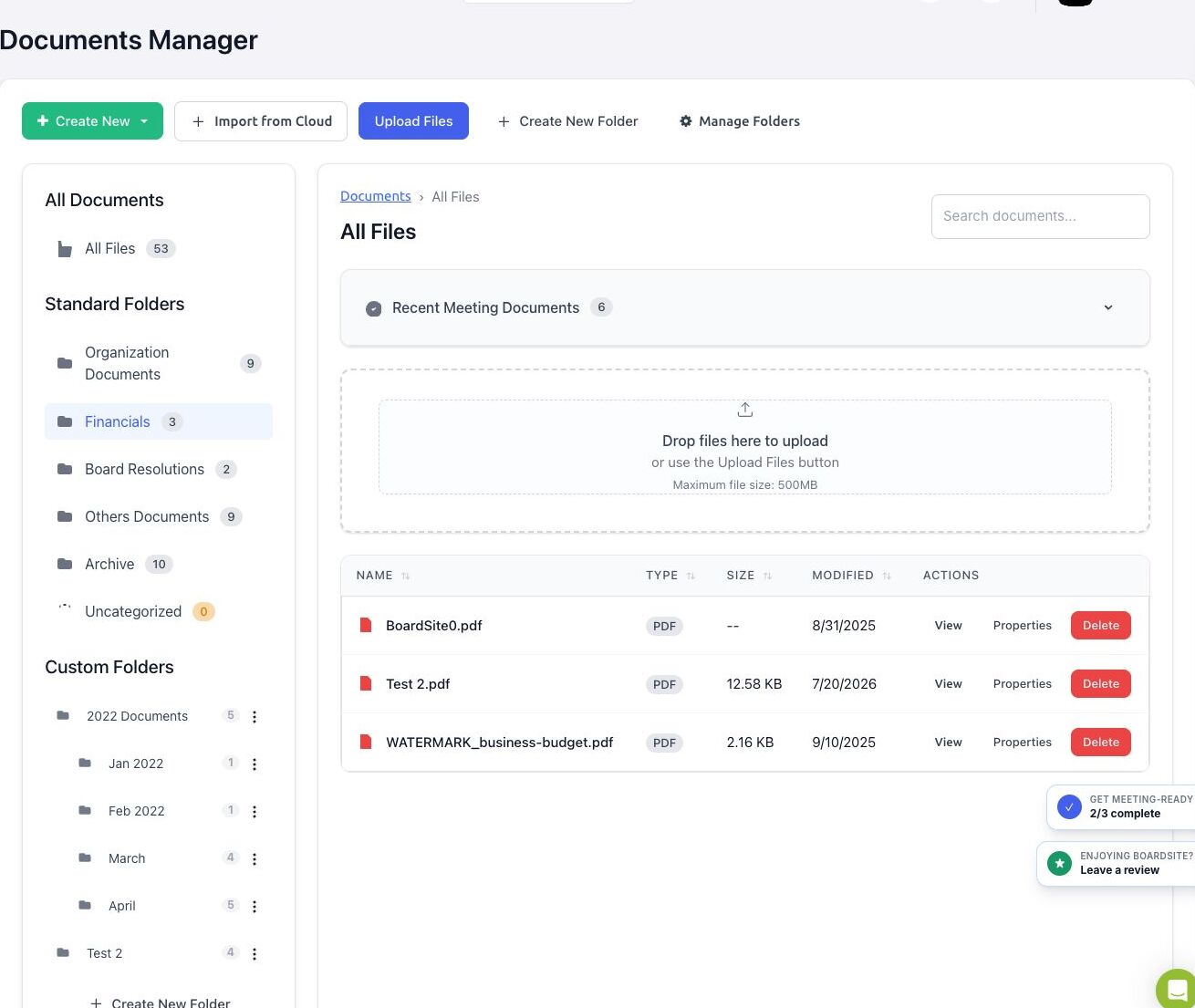
Find documents #
- All Files counts the documents currently visible to you across the organization.
- Standard Folders include organization documents, financials, board resolutions, other documents, archive, and uncategorized files.
- Custom Folders can contain nested folders created for your organization’s own structure.
- Select Recent Meeting Documents to expand documents associated with recent meetings.
- Use Search documents to filter the displayed document list.
Work with a document #
The available actions vary by file type and your permissions:
- View opens the file in BoardSite’s document viewer.
- Edit appears for supported editable file types when online editing is available.
- Properties lets an authorized user rename a document or change its committee visibility.
- Delete removes the document through a confirmation workflow. Review the exact file and consequences before confirming.
Add content #
- Select Upload Files, or drag files into the upload area. The displayed maximum file size is 500 MB per file.
- Select Import from Cloud to import from a connected Google Drive, OneDrive, or Dropbox account.
- Select Create New Folder to add a custom folder.
- If Create New is available, use it to create a supported Word document, spreadsheet, or presentation in BoardSite.
Visibility reminder: A document may be visible to the full board or limited to a committee. Never use the number shown beside a folder as proof that another member can see the same files.
Troubleshooting #
- If a folder or file is missing, confirm the organization, committee membership, and document permissions.
- If upload controls are unavailable, you may lack upload permission or the organization’s document limit may have been reached.
- If a file cannot be edited online, download or view it instead, or ask an administrator whether online document editing is enabled.


