
BoardSite Live Meeting is a focused meeting portal for reviewing meeting materials, responding to meeting items, following tasks, joining a virtual session, and collaborating during the meeting.
Open Live Meeting #
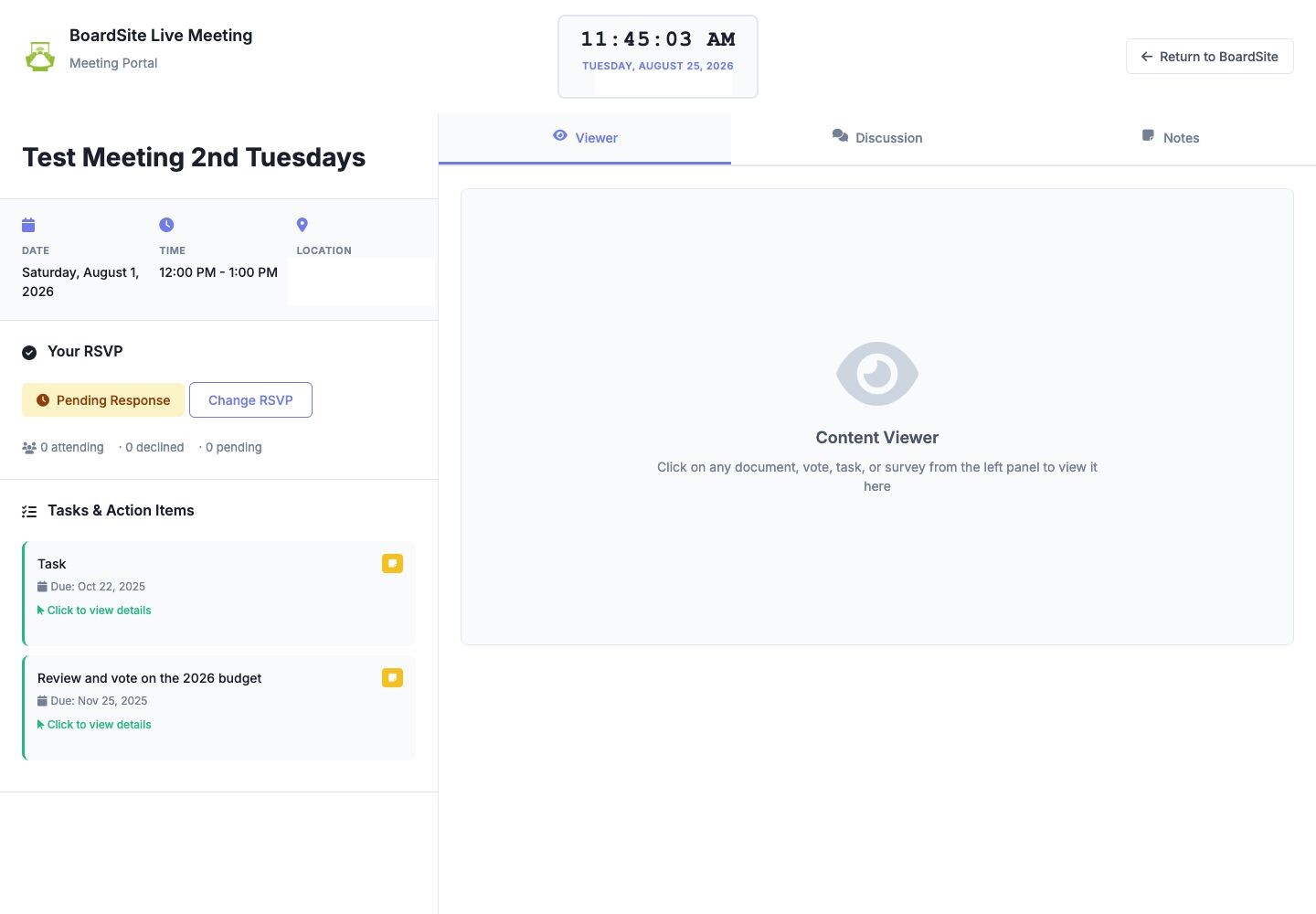
- For a meeting scheduled today, select Join Meeting from the dashboard’s Priority Actions, or select Join Now in Upcoming Meetings.
- For another meeting, open the meeting in BoardSite and select Meeting Viewer.
- Confirm the meeting date, time, location, and your RSVP status.
Review and respond during the meeting #
- Select a document, vote, task, or survey in the left panel to open it in Viewer.
- For a virtual or hybrid meeting, use the virtual-meeting area to open the meeting provider’s joining link. The provider opens separately from BoardSite.
- Use Discussion for real-time messages with other internal meeting attendees. Messages posted there are shared, not personal notes.
- Use Notes for your own meeting notes. Select Add Note, or press Command/Ctrl + Enter to save quickly.
- Select Email My Notes only when you are ready to send your notes by email.
Update your RSVP #
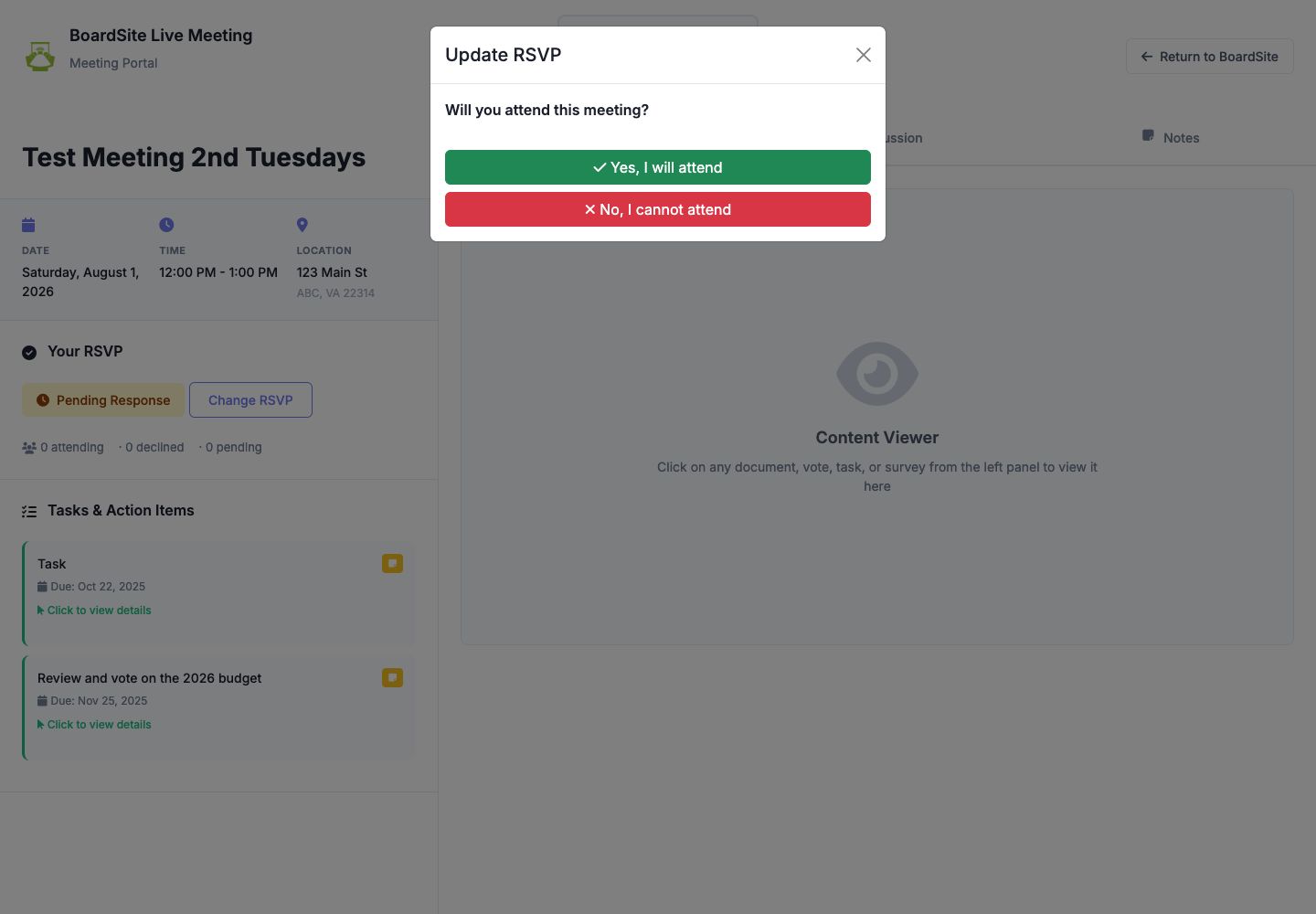
- In Your RSVP, select Change RSVP.
- Choose whether you will attend. Hybrid meetings may also ask whether you will attend in person or virtually.
- Return to the meeting portal and confirm the updated status.
Privacy reminder: Discussion messages are visible to meeting participants. Keep personal working notes in Notes, and review them before using the email option.
Troubleshooting #
- If an expected document, vote, task, or survey is missing, confirm that it has been attached to the meeting and that you have permission to view it.
- If a virtual joining link is missing, contact the meeting organizer.
- If Discussion or Notes is missing, confirm that you are signed in as an internal meeting participant.
- Select Return to BoardSite to leave the meeting portal without changing the meeting.


