
Authorized users can record meeting audio in the browser or upload an existing recording. BoardSite processes the recording into a transcript and AI-generated meeting analysis that can be reviewed before anything is saved as meeting minutes.
Before recording: Follow all applicable consent, notice, privacy, retention, and confidentiality requirements. Tell participants when recording is active, and do not upload material your organization is not authorized to process.
Record in your browser #
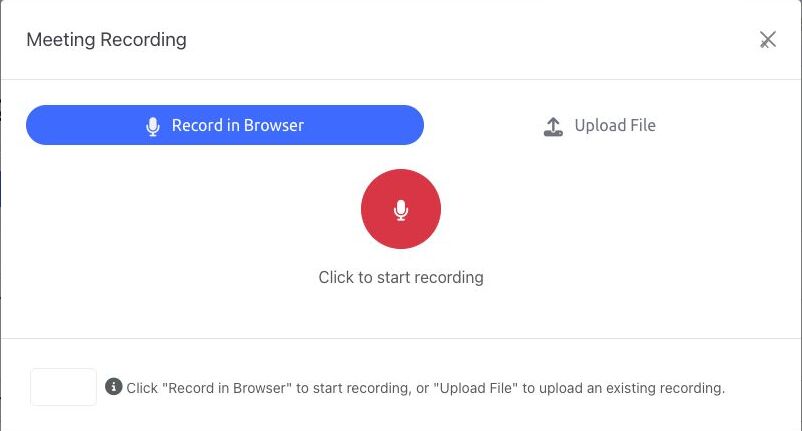
- Open the meeting workspace.
- Select Record/Upload.
- On Record in Browser, select the microphone control.
- Allow microphone access if your browser asks for permission.
- Use the pause and stop controls as needed.
- After stopping, preview the recording. Choose Re-record if it should be replaced.
- When the recording is ready, select Process with AI.
Upload an existing recording #
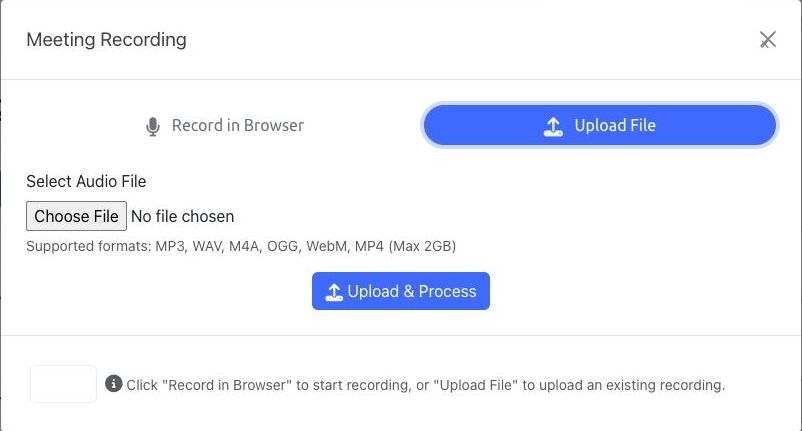
- Open Record/Upload, then select Upload File.
- Select Choose File and choose an MP3, WAV, M4A, OGG, WebM, or MP4 file up to 2 GB.
- Select Upload & Process.
- Keep BoardSite open until the upload is complete. Processing can continue after the upload finishes.
Review the transcript and AI analysis #
- Open the meeting’s Minutes tab and find Meeting Transcription.
- Wait for the recording status to change from pending or processing to completed. If processing fails and you have permission, use the retry action.
- Select View Analysis.
- Review Minutes, Minutes by Section, Full Transcript, Action Items, and Decisions.
- Select Edit Minutes to correct the generated minutes, then save the edits.
- If section-based minutes are available, use Apply to Agenda Sections Below only after verifying the mapping.
- Use an action item’s task control to create BoardSite tasks only after checking the title, description, due date, and assignees.
Save or approve minutes #
- Save to Meeting copies the reviewed generated content into the meeting’s minutes workflow.
- Approve as Official marks the transcript-derived minutes as official. Use it only after the required human and organizational review is complete.
Human review is required: Transcripts and AI-generated minutes can misidentify speakers, omit context, or state decisions incorrectly. Compare the result with the recording and meeting record before saving or approving it.
Troubleshooting #
- If microphone recording does not start, review browser microphone permission and use a current version of Chrome, Firefox, Safari, or Edge.
- If an upload is rejected, confirm the file type and 2 GB limit.
- If Record/Upload, retry, save, or approval controls are missing, ask an administrator to review feature availability and your permissions.
- If processing repeatedly fails, keep the original recording and contact your BoardSite administrator.


