
Users whose role includes navigation-management permission can reorder menu items, hide items, edit their presentation, and add organization-specific links.
Reorder or hide menu items #
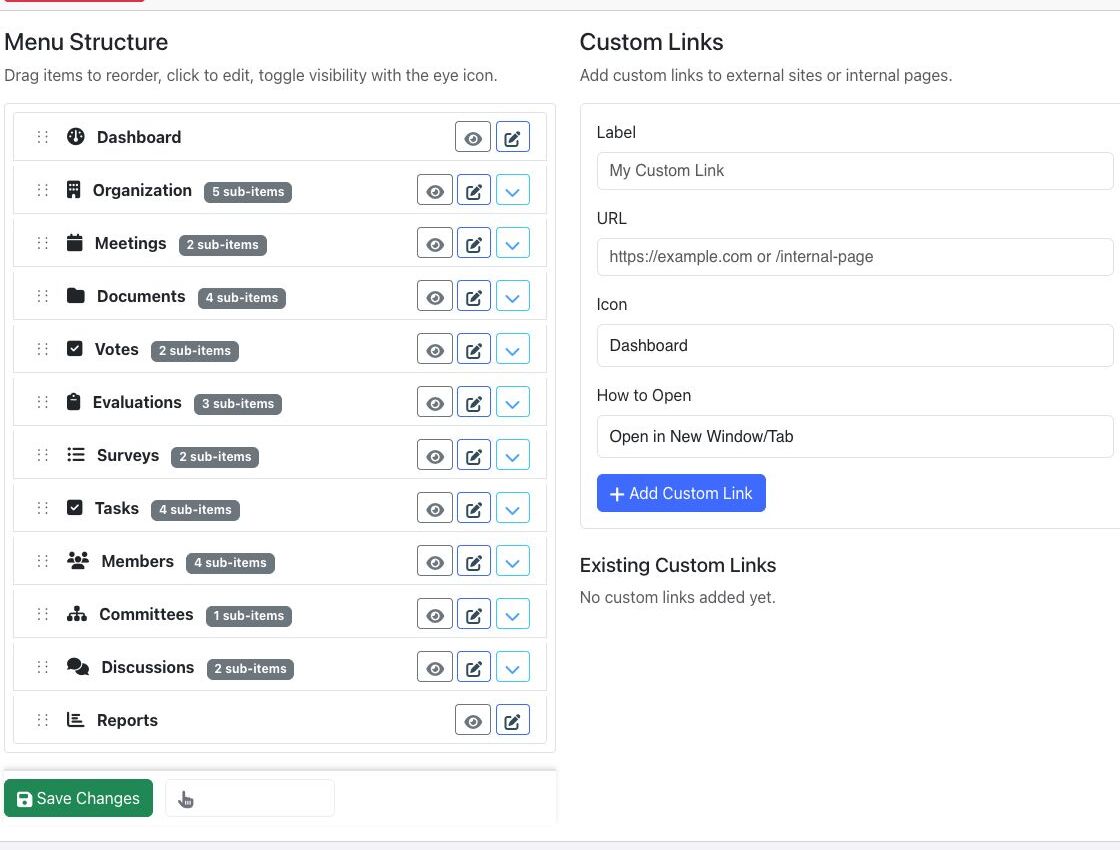
- Open Organization and select Customize Navigation.
- Drag items into the preferred order. Nested items remain grouped under their parent section.
- Use the eye control to show or hide an item.
- Use the edit control to change an editable item’s settings.
- Select Save Changes.
Add a custom link #
- Enter a label and a complete URL.
- Choose an icon.
- Choose whether the link opens in the same window or a new tab.
- Select Add Custom Link, then save the menu.
Reset the menu #
Select Reset to Default only when you intend to discard the organization’s navigation customizations. After any change, test the menu with both an administrator and a standard member because permissions can still hide inaccessible destinations. If a role can open this editor unexpectedly, a Super-Administrator should review that role’s effective permissions before anyone saves a change.


