
BoardSite reports help authorized users review login activity, meeting attendance, board engagement, and email delivery history. Report access depends on your role, permissions, and the organization’s plan.
Open Reports #
- Sign in to BoardSite and select the correct organization.
- Select Reports in the navigation menu.
- Select a report name or its View button.
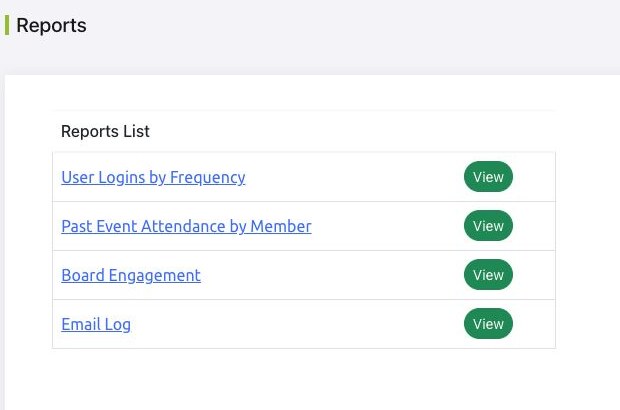
Available reports #
- User Logins by Frequency summarizes member login activity for a selected period.
- Past Event Attendance by Member reviews recorded attendance for a selected past meeting.
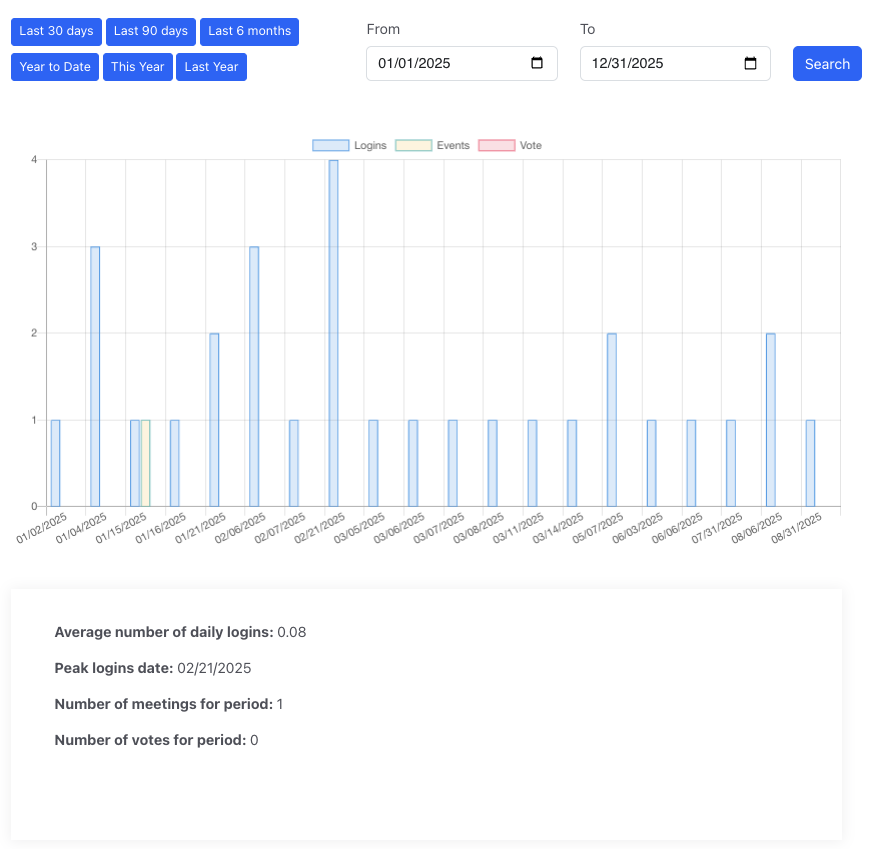
- Board Engagement summarizes logins, meetings, and votes over time.
- Email Log reviews organization email activity for a selected period.
Choose a reporting period #
Time-based reports provide preset periods such as the last 30 days, last 90 days, last six months, year to date, this year, and last year. You can also enter a custom From and To date and select Search.
Protect report information #
- Reports can contain member activity, attendance, or email information. Share them only with authorized recipients.
- Confirm the active organization and reporting period before using the results.
- An empty report may mean there was no matching activity, not that the report failed.
- Report totals reflect information recorded in BoardSite and may not include activity that occurred outside BoardSite.
Troubleshooting #
- If Reports is missing, ask an administrator to confirm your reporting permission and plan access.
- If attendance is incomplete, review the meeting’s Attendance tab and confirm attendance was recorded.
- If a custom period returns no results, verify that the From date is earlier than or equal to the To date.


